Do NFC tags work with iPhone and Android? What phones need
Which iPhones and Android phones read NFC tags with no app, where to tap each one, why a tap sometimes does nothing, and what staff can say to fix it fast.
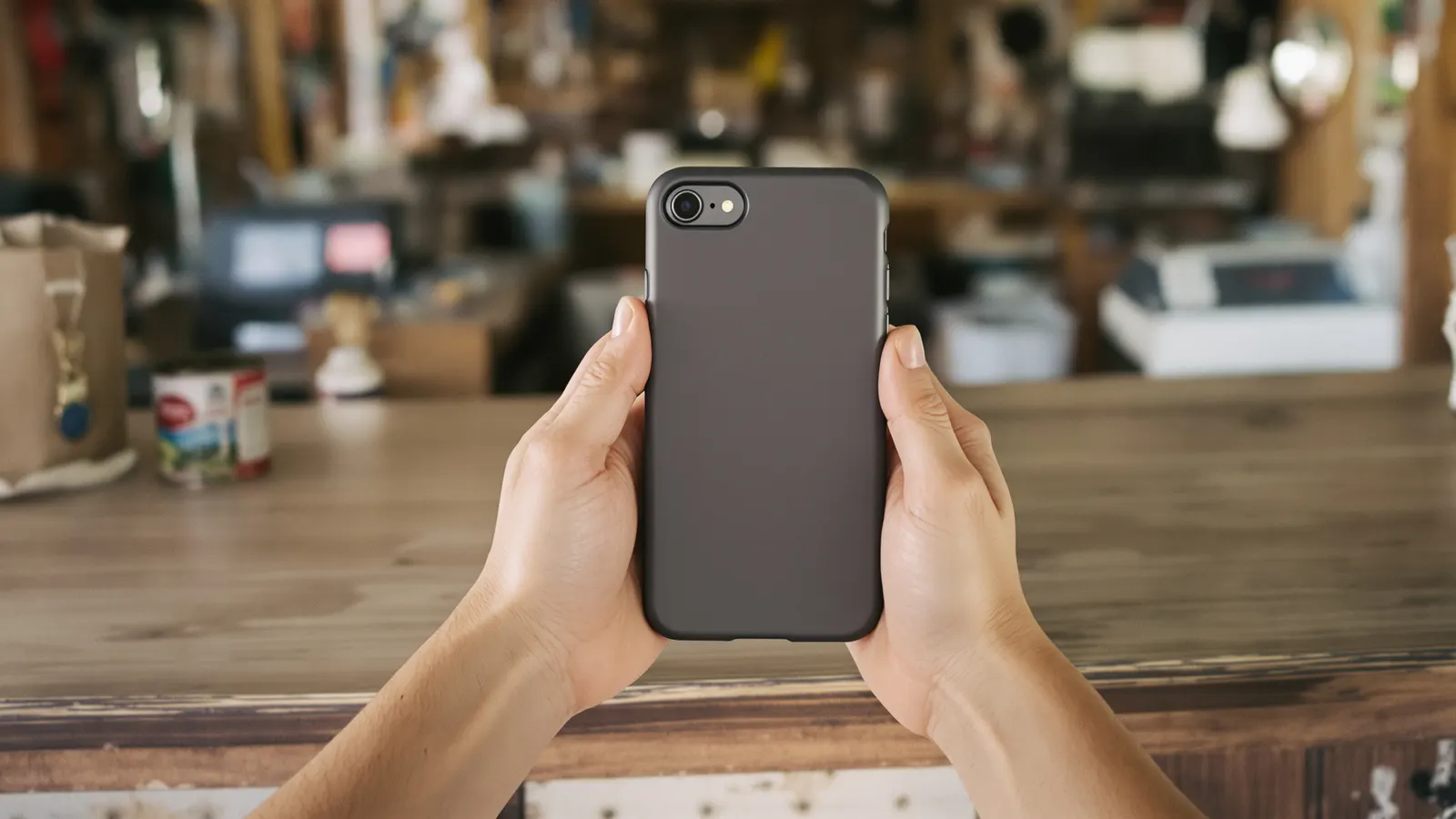
Most of the phones customers pull out at a counter can read an NFC tag with nothing installed, as long as NFC is turned on and the tag touches the right part of the phone. The trouble comes from the exceptions: an older iPhone that needs a button pressed first, an Android with NFC switched off, a thick wallet case, or somebody holding the tag against the wrong end of the phone.
This is the page we'd want an owner to read before buying anything NFC, and it's also the page you can text to a customer whose phone "didn't do anything." Everything about specific phone models here comes from Apple, Google, and Samsung's own help pages, linked at the bottom. Where it varies by model, we say so.
Which iPhones read tags on their own
Apple's developer documentation says iPhone XS and later support background tag reading. That means the phone watches for NFC tags by itself whenever it's in use, with no app open and no setting to flip. Apple's iPhone user guide lists the models that "automatically support NFC Tag Reader" as the iPhone XR, XS, XS Max, the SE (2nd generation and later), and the 11, 12, and 13 lines, and everything newer works the same way.
On these phones there's no NFC switch in Settings for the customer to accidentally leave off. People sometimes go looking for one, don't find it, and decide their phone can't read tags, when it's been ready the whole time.
Older iPhones that need a Control Center button
The iPhone 7, 7 Plus, 8, 8 Plus, and X can read tags, but they don't do it in the background. Apple's user guide (from iOS 14 on) says that on those models you "turn on NFC Tag Reader in Control Center." So the customer has to:
- Add NFC Tag Reader to Control Center in Settings, if it isn't there already.
- Open Control Center and tap the NFC Tag Reader button.
- Hold the tag near the top of the phone.
That's a lot to ask of somebody standing at your register. If a customer has one of these phones, the QR code is usually the faster road.
iPhones that can't read tags at all
Apple introduced tag reading on the iPhone 7. In its 2017 Core NFC session Apple said plainly that tag reading was supported on the iPhone 7 and 7 Plus, and it later described tag reading as "supported on iPhones since the iPhone 7." An iPhone 6 or anything older won't read the tag, no matter where it's held. Those phones will scan a QR code with the camera, though.
| Phone | What it needs to read a tag |
|---|---|
| iPhone XS, XR, SE (2nd gen) and newer | Nothing. Screen on, phone in use, tap near the top. |
| iPhone 7, 7 Plus, 8, 8 Plus, X | NFC Tag Reader turned on from Control Center first |
| iPhone 6 and older | Can't read tags. Use the QR code. |
| Android with NFC | NFC turned on, screen on and past the lock screen, tap the back |
| Android without NFC | Can't read tags. Use the QR code. |
Android phones and the NFC setting
Android is less uniform because so many companies make the phones. Two things to check.
First, does the phone have NFC at all? Google's Pixel help puts it simply: "If you don't see the NFC setting, your phone doesn't have NFC." Most mid-range and higher phones do. Some budget models don't.
Second, is it turned on? On a Pixel, Google's path is Settings, then Connected devices, then Connection preferences, then NFC, and turn on Use NFC. On a Samsung Galaxy it's Settings, then Connections, then NFC and contactless payments. Other brands put it somewhere else, and Google's Wallet help says it plainly: steps "may differ depending on your device." The quickest route on any Android is to open Settings and type "NFC" in the search bar. Many phones also have an NFC tile in the Quick Settings panel you get by swiping down from the top of the screen.
Plenty of people already have it on because they pay with their phone. Plenty don't, so it's worth asking before you assume the keychain is the problem.
Where to tap: top of the iPhone, back of the Android
A lot of failed taps come down to this. People hold the tag to the screen, or to the bottom of the phone, and nothing happens.
On an iPhone, the reader is at the top. Apple's own instructions for reading an AirTag say to "tap and hold the top of your iPhone" to it. Touch the tag to the top edge on the back, up near the camera.
On Android, the reader is on the back, and where exactly depends on the phone. Samsung says the antenna position "varies by model" and that you can see it for your phone under Settings, Connections, NFC and contactless payments. On a lot of phones it's somewhere around the middle of the back. That's not a rule, though. Google moved the NFC antenna to the top of the phone on the Pixel 11, according to Google's announcement as reported by 9to5Google. When in doubt, slide the tag slowly across the back from the camera down.
iPhone Hold it to the top edge, near the camera.
Most Android phones Somewhere on the back, often near the middle. It varies by model.
What the customer sees after a tap
On an iPhone, the phone doesn't jump straight to the page. Apple says the system "displays a pop-up notification each time it reads a new tag," and the link opens after the person taps that notification. If the phone is locked, Apple says it asks the person to get past the lock screen before handing over the link. A website link that isn't tied to an installed app opens in Safari. Tell customers to watch the top of the screen for the banner, because a lot of people tap, see nothing load, and pull the phone away without noticing it.
On Android, it has usually been more direct: tap, and the browser opens the link. Google's developer docs say Android phones usually look for tags only while the screen is on and past the lock screen, so a locked phone matters more here than on iPhone. Google's docs also say that starting with Android 17, tapping a tag with a web link "surfaces an 'open link' notification," so newer Android phones will behave more like iPhones, with one extra tap on a notification.
Why a tap does nothing
When a tap fails, it's usually one of these. They're in a sensible order to check:
- The screen is off. Neither kind of phone reads tags with a dark screen. On Android, the lock screen can block it too.
- Wrong spot. Screen side, bottom of an iPhone, or the edge of an Android instead of the back.
- NFC is off on an Android, or the phone doesn't have it.
- It's an iPhone 7, 8, or X, and nobody opened the NFC Tag Reader in Control Center.
- The camera is open. Apple lists "the camera is in use" as one of the times background reading is off. Customers do this a lot because they were about to scan a QR code.
- Apple Pay or Wallet is open. Apple lists that too, along with Airplane Mode.
- The case is in the way. Samsung tells people to remove third-party covers, "especially magnetic ones designed to hold credit cards and IDs," and to avoid metal cases. Google's Pixel help says cards in a wallet case can block contactless payments. A thick case or a card wallet on the back can stop a tag read too.
- Moving too fast. NFC works from a touch to a few centimeters, per Samsung. A quick swipe past the phone often isn't enough. Touch it and hold still for a second or two.
- The banner showed up and nobody tapped it. That's the iPhone one.
A 20-second script staff can say out loud
Give your staff something short enough to remember. Something like this covers most of the list above:
"Wake your screen up for me. Now touch this to the back of your phone, up near the camera if it's an iPhone, middle of the back if it's Android, and just hold it there a second. See that little banner at the top? Tap that. If it still won't go, close the camera if it's open, and if you've got cards in your case, pop it out of the wallet part. Still nothing? No problem, scan this QR code with your camera instead."
Don't make a customer troubleshoot for a minute. If the second try fails, go straight to the QR code.
Keep the QR code within reach
Every phone with a working camera can scan a QR code, including the older iPhones and budget Androids that can't read tags, so it covers the people NFC misses.
With our keychains, every link has a QR code in your dashboard that goes to the same place as the tap, so you can print it on a counter card, a receipt, or the back of a business card and keep it within reach. Taps and scans both run through the same link, so the count stays in one place (on our Pro plan you can see it) and you can change where it points later without reprinting anything.
Questions owners ask
Does the customer need to download an app?
No. iPhone XS and newer, and Android phones with NFC turned on, read a web link from a tag without any app. The iPhone 7, 8, and X need the built-in NFC Tag Reader from Control Center, which is part of iOS, not a download.
Why doesn't the customer's iPhone have an NFC setting?
Because on iPhone XS and newer there isn't one. Background tag reading is always available when the phone is in use. Only the iPhone 7, 8, and X get the NFC Tag Reader button in Control Center.
Can a customer tap it through their phone case?
Usually, with a normal thin case. Metal cases, magnetic cases, and cases with cards stored on the back are the ones Samsung and Google warn about. If a tap fails, trying without the case is a fair test.
Will it work on every Android phone?
Only ones that have NFC. If there's no NFC option when the customer searches Settings for "NFC," the phone doesn't have it, and the QR code is the way in.
Sources
- https://developer.apple.com/documentation/corenfc/adding-support-for-background-tag-reading
- https://support.apple.com/guide/iphone/aside/asd-nfc-reader/14.0/ios
- https://support.apple.com/en-euro/guide/iphone/aside/asd-nfc-reader/15.0/ios
- https://developer.apple.com/videos/play/wwdc2017/718/
- https://developer.apple.com/videos/play/wwdc2020/10209/
- https://support.apple.com/en-us/102170
- https://developer.android.com/develop/connectivity/nfc/nfc
- https://support.google.com/pixelphone/answer/7475639?hl=en
- https://support.google.com/pixelphone/answer/3470787?hl=en
- https://support.google.com/wallet/answer/14186809?hl=en
- https://www.samsung.com/uk/support/mobile-devices/troubleshoot-nfc-issues-on-galaxy-devices/
- https://www.samsung.com/uk/support/mobile-devices/what-is-nfc-and-how-do-i-use-it/
- https://9to5google.com/2026/08/13/google-pixel-11-nfc-improvement/


